Learn Python from Scratch with Google Colab
Your hands-on step-by-step guide to writing your first code without installing anything
💡 Why Google Colab Specifically?
Imagine wanting to learn programming but you don't have a powerful computer, or you don't want to install complicated software that might mess up your system. Google Colab is the answer! It's a 100% free platform from Google that lets you write and run Python code directly in your browser. Even if your device is weak, Colab gives you the power of Google's servers for free — meaning you can run AI models and heavy computations without stressing your hardware.
I personally tried learning Python the traditional way and struggled a lot because installation and troubleshooting took more time than actual coding. With Colab, from minute one I was writing code and seeing results. This tutorial is written from real experience so you can follow the same path but faster.
📋 What You Need Before Starting
1. A web browser (Chrome, Firefox, Edge, Safari — any one works)
2. A Google account (Gmail) — if you don't have one, sign up free here
3. Internet connection
4. No software installation needed at all! 🎉
Open Google Colab and Create a New Project
First step is accessing the Colab platform. Open your browser and go to colab.research.google.com. You need to be signed in with your Google account. After logging in, you'll see a welcome page where you can create a new project or open existing ones.
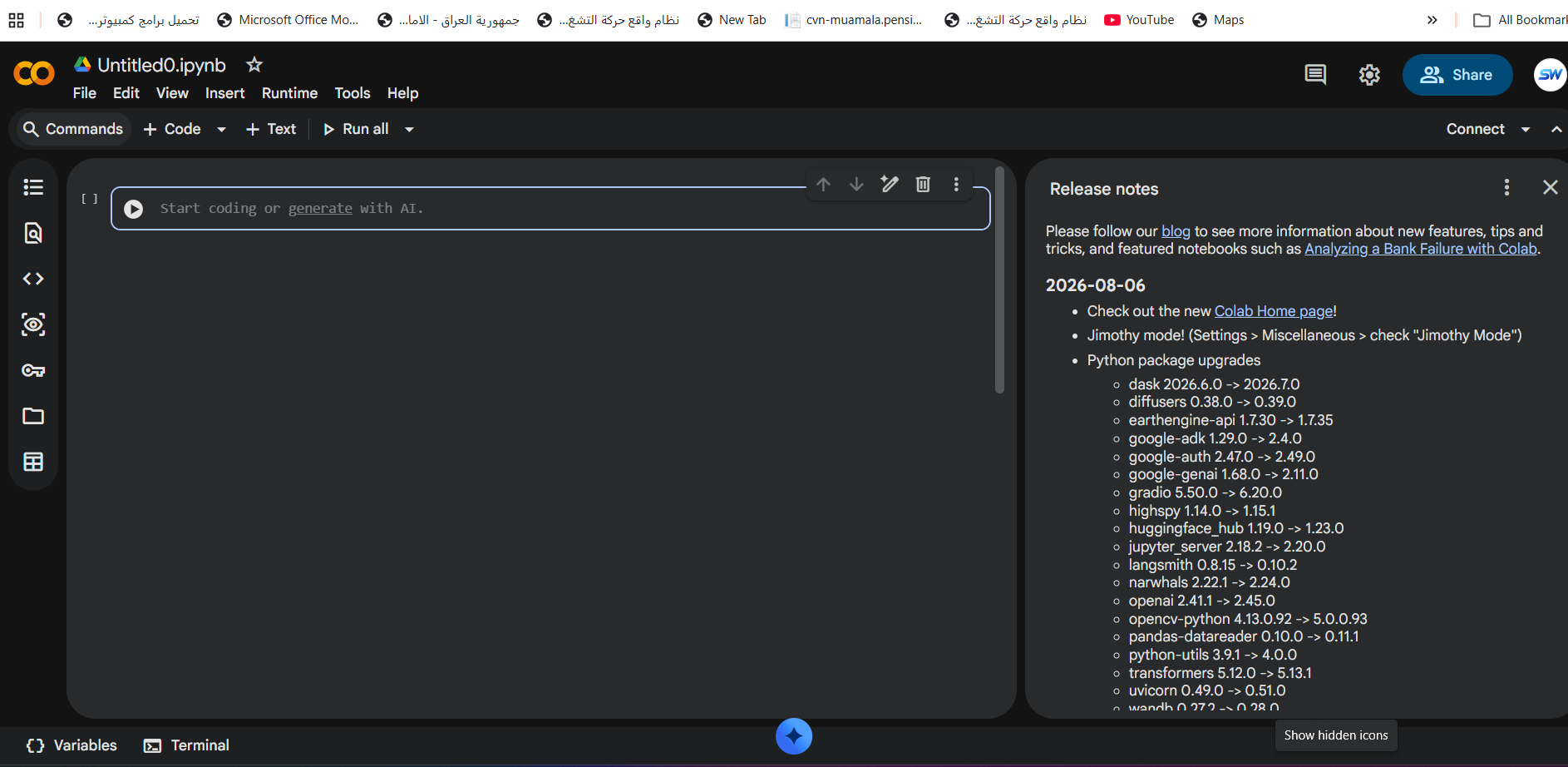
Click the "New Notebook" button at the bottom of the page, or from the menu choose File → New Notebook. A blank page will open with a single code cell showing "Start coding or generate with AI". This is your writing area — here we'll write all our code.
The screenshot below shows what the page looks like after creating a new project. See the empty cell? This is the beginning of your programming journey!
If you run into loading issues, try refreshing the page or using Chrome browser. Colab works best on Chrome since it's a Google product.
First Code — Print Your Message on Screen!
Getting started with Python is way easier than you think. The first command we learn is print() — which means "print" or "display" text on screen. This is the foundation of every programming language.
Type the following code in the first cell:
print("Hello World")
print("Welcome to the world of Python!")
Now click the Play button (▶️) on the left side of the cell, or press Shift + Enter on your keyboard. You'll see the result appear directly below the cell!
Hello World
Welcome to the world of Python!You just wrote your first Python code! Notice how Python handles both English and other languages natively — you can write multilingual text directly.
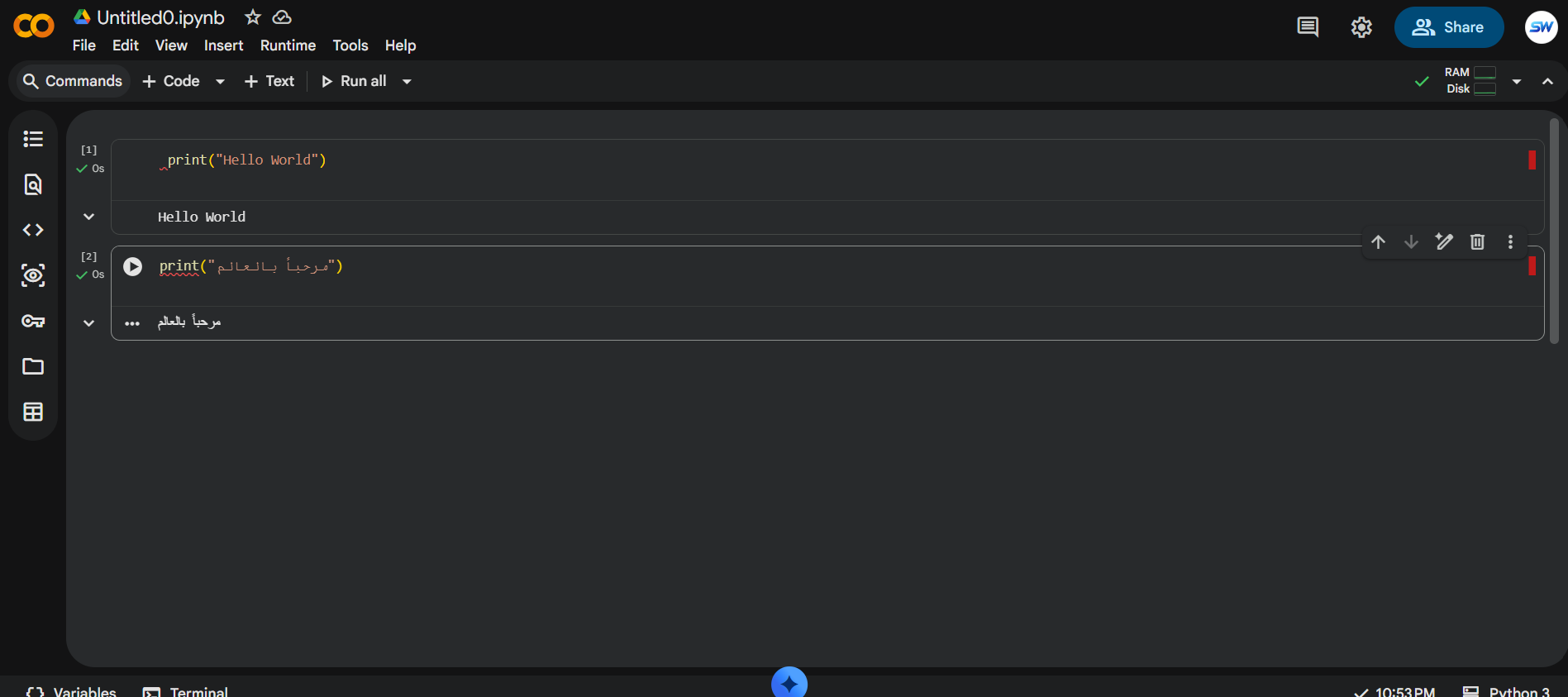
Let's understand what we did: the print() command takes text between quotation marks "" and displays it on screen. Text between quotes is called a "String" — a string of characters. Anything between quotes in Python is considered text.
Variables — Store Your Information in Boxes
A variable is like a box 📦 — you name it, put a value inside, and then you can use and change it whenever you want. Without variables, programming wouldn't do anything useful!
Try this code:
# Define variables
name = "abdalhameed"
age = 20
country = "Iraq"

# Print variables using f-string
print(f"Name: {name}")
print(f"Age: {age}")
print(f"Country: {country}")
Notice how we use f"" — this is called an f-string, a modern and easy way to insert variable values inside text. The thing between curly braces {} gets replaced with the variable's value.
Name: abdalhameed
Age: 20
Country: IraqA line starting with # is a comment — the computer ignores it, but it helps you and others reading the code understand what each part does. Get into the habit of writing comments!
Arithmetic Operations — Python as Your Super Calculator
Python is excellent at math! You can perform all the mathematical operations you need. Try:
# Addition
x = 10
y = 5
sum_result = x + y
print("Addition =", sum_result)

# Subtraction
sub_result = x - y
print("Subtraction =", sub_result)

# Multiplication
mul_result = x * y
print("Multiplication =", mul_result)

# Division
div_result = x / y
print("Division =", div_result)

# Power (exponent)
power_result = x ** 2
print("10 squared =", power_result)
Addition = 15
Subtraction = 5
Multiplication = 50
Division = 2.0
10 squared = 100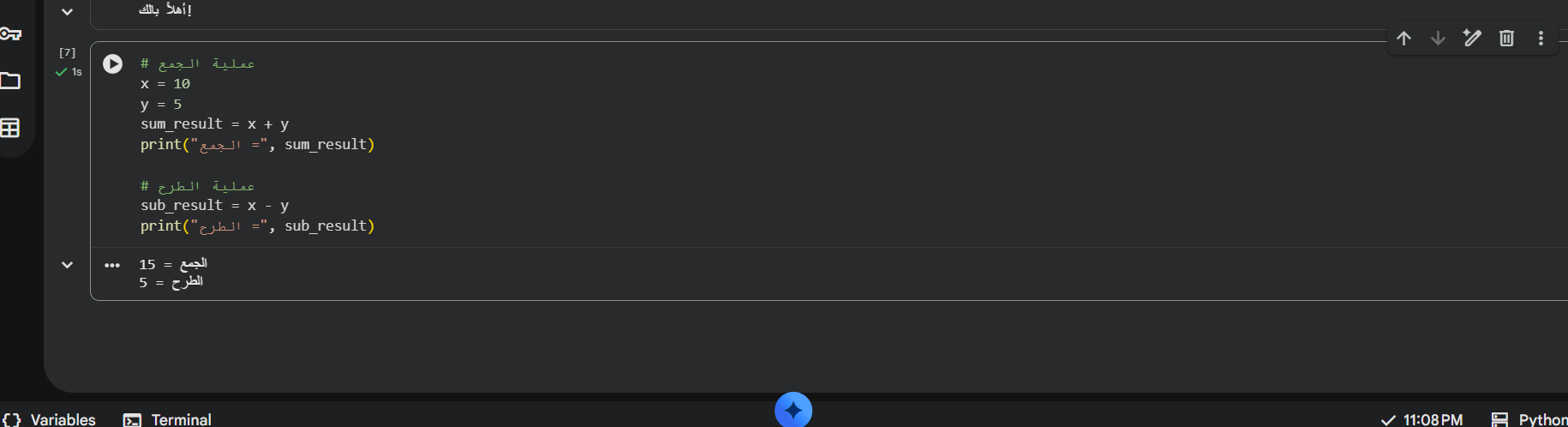
Practical exercise: Try calculating the area of a rectangle! Area = Length × Width. Write code that takes length and width and prints the area. This kind of application makes learning fun and practical.
Conditional Statements — Smart Decisions in Your Code
Life is all about decisions: if it's raining, take an umbrella. If you're hungry, eat. In programming, we call this if/else — meaning "if the condition is met, do this, otherwise do that".
age = 20

if age >= 18:
    print("Welcome! You may enter")
else:
    print("You need parental permission")
Welcome! You may enterLet's understand the code step by step:
- age = 20 — stored the age in a variable
- if age >= 18: — if age is 18 or more (condition is met)
- print("Welcome!") — execute this code
- else: — otherwise (if condition is not met)
- print("You need permission") — execute the alternative code
Try it yourself: Change the value of age to 15 and see what happens! The result will change because the condition won't be met.
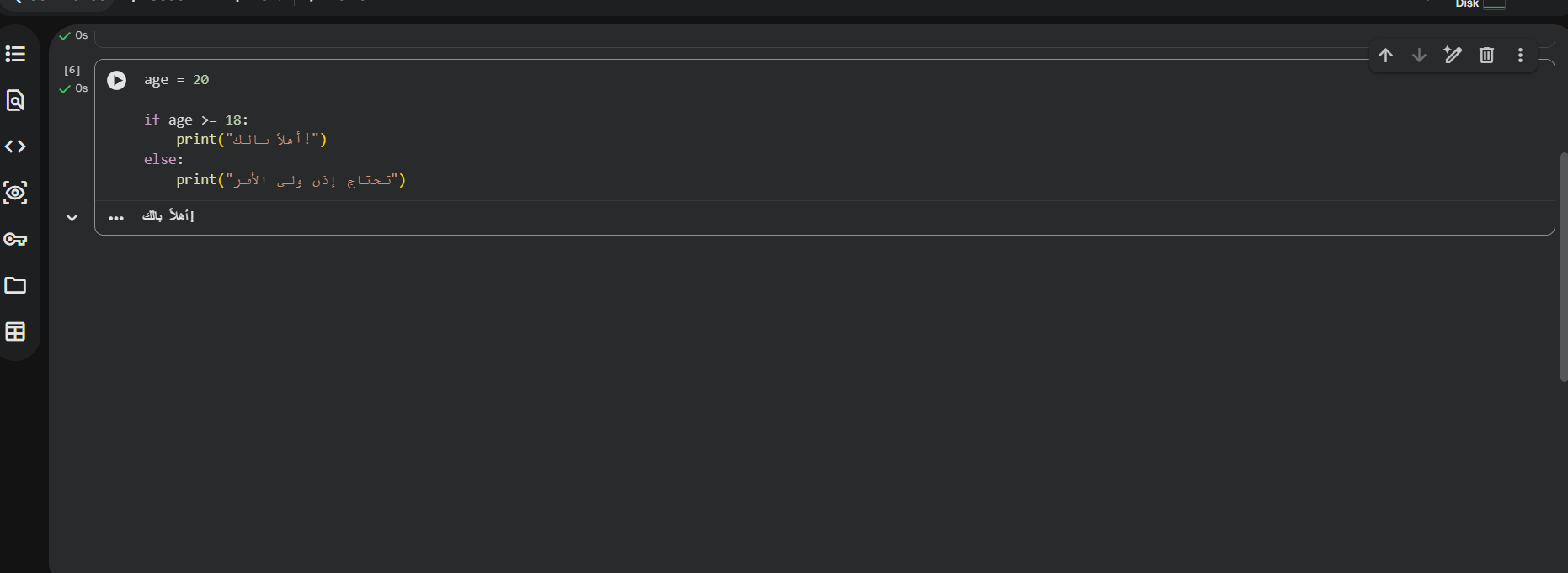
Notice the indentation before print — in Python, indentation is crucial! Every line under if or else must start with 4 spaces. Without the indentation, the code won't work.
For Loop — Repeat Without Boredom
If you want to print numbers from 1 to 10, you don't write 10 lines! A for loop does it in one line. This is the secret of programming — automation and repetition.
# Print numbers from 1 to 5
for i in range(1, 6):
    print(f"Number {i}")
Number 1
Number 2
Number 3
Number 4
Number 5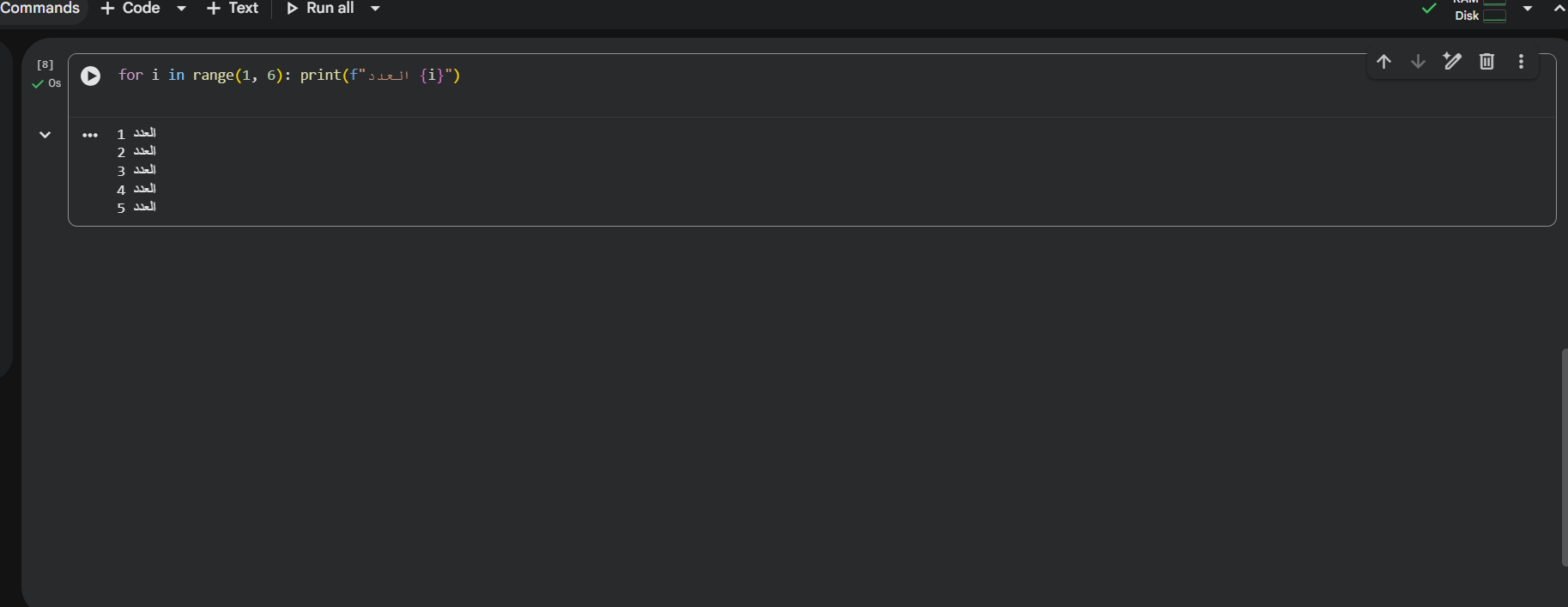
What happened here? The range(1, 6) command generates numbers from 1 to 5 (note: 6 is not included!). Each time the loop takes a number and stores it in the variable i and executes the code inside.
Fun exercise: Try printing the 7 times multiplication table! Just modify the code:
for i in range(1, 11):
print(f"7 × {i} = {7 * i}")Lists — Organize Your Data Smartly
A list is like a drawer 🗄️ — you can put many things in it, organized, and access any one quickly. Lists are one of the most important concepts in Python.
# Create a list of fruits
fruits = ["Orange", "Banana", "Apple"]
print(fruits)

# Access a specific element (lists start from 0)
print(f"First fruit: {fruits[0]}")
print(f"Last fruit: {fruits[-1]}")

# Add a new element
fruits.append("Strawberry")
print(f"After adding: {fruits}")

# Number of elements
print(f"Number of fruits: {len(fruits)}")
['Orange', 'Banana', 'Apple']
First fruit: Orange
Last fruit: Apple
After adding: ['Orange', 'Banana', 'Apple', 'Strawberry']
Number of fruits: 4In Python, counting starts from zero! So the first element is number 0, the second is number 1, and so on. But -1 means the last element — a smart shortcut.
Save Your Project to Google Drive
After writing all this code, it's very important to save your work! Without saving, if you close the browser, you'll start from scratch. The solution is quick and easy:
- Click File → Save a copy in Drive from the top menu
- Or press Ctrl + S for a quick save
- Your project will be saved in the Colab Notebooks folder in Google Drive
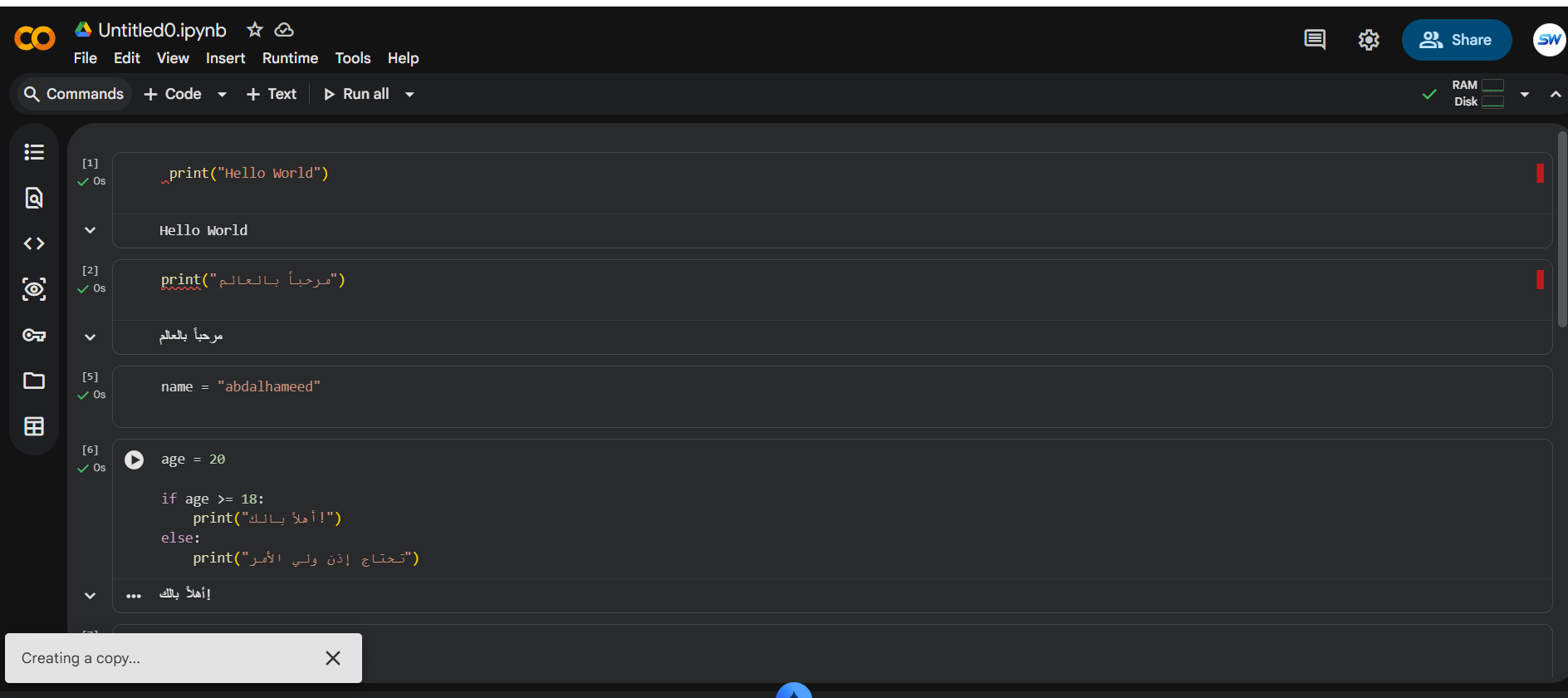
After saving, you can access your project from any device in the world — just sign in to your Google account and open Google Drive. This is one of the biggest advantages of Colab: your project follows you, not the other way around!
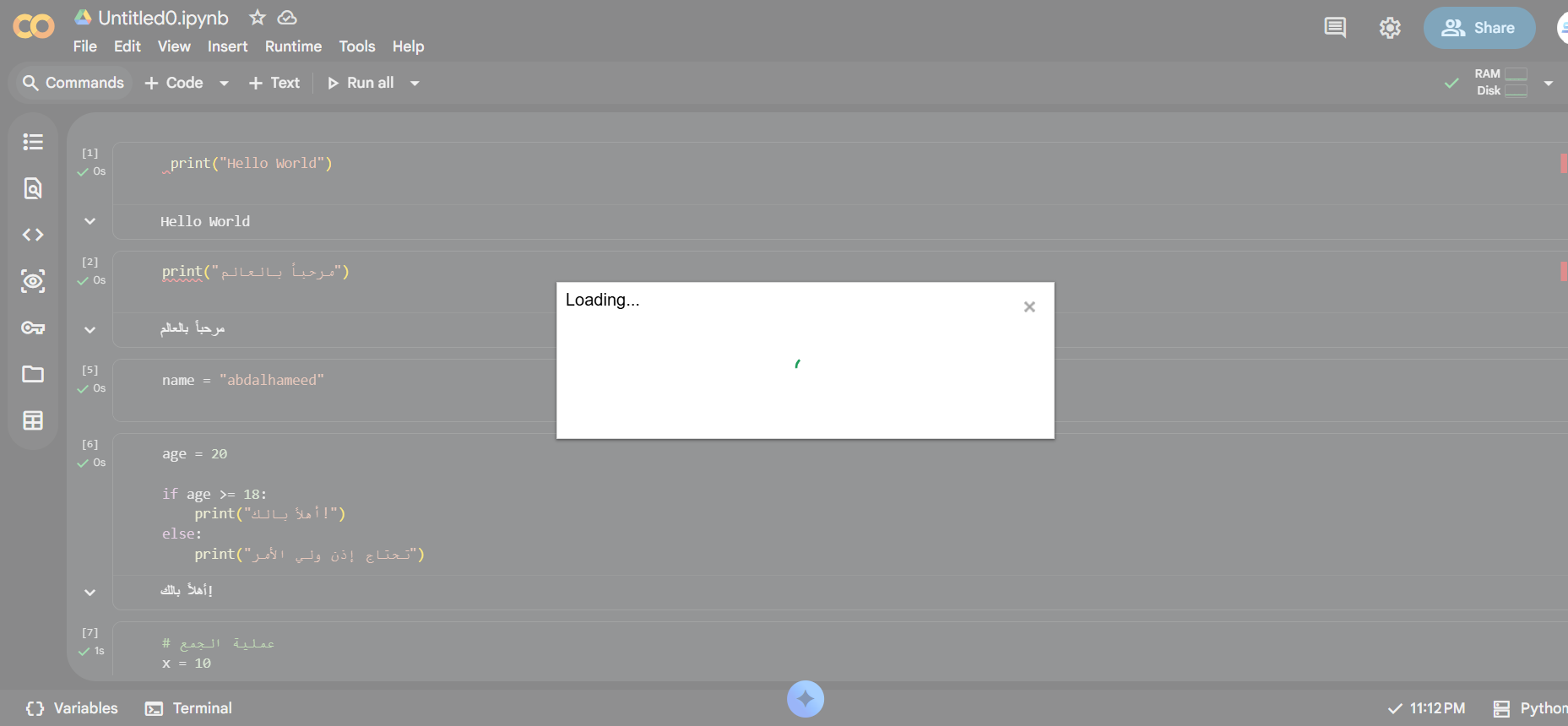
Make it a habit to save your work every 10 minutes. Even though Colab auto-saves, manual saving ensures you don't lose anything. Also rename your project from "Untitled" to something descriptive like "Learn-Python-1" so you can find it easily later.
Share Your Project with Others
One of the nicest features of Colab is sharing. Want to show your friend your code? Or send your project to your teacher? It's super easy:
- Click the Share button at the top of the page
- A sharing dialog will appear
- Change "General access" from "Restricted" to "Anyone with the link"
- Copy the link and send it to anyone you want
The person who receives the link can open the project and see your code, but they can't modify your original version. Colab opens a copy for them that they can edit freely.
If your project contains sensitive information (like passwords or API keys), don't publish the link. Keep it "Restricted" and add only the specific people you want by email.
💡 Golden Tips for Beginners
- Don't fear errors — every programmer in the world makes mistakes, and the red error message is your friend telling you exactly where the problem is
- Experiment yourself — change the numbers and text and see what happens. Experimentation is the best way to learn
- Use AI in Colab — notice the blue sparkle button ✨ next to each cell. This is an AI assistant that helps you write code!
- Always save your work — Ctrl+S or File → Save, and rename the file to something clear
- Learn from errors — if you get an error, read the message carefully. Google can translate it for you and pinpoint the exact line
- Start with small projects — don't try to build a big app on day one. Start simple and grow gradually
📚 Additional Learning Resources
- Official Python Documentation — the primary and most important reference
- Google Colab — open it and start coding immediately
- VS Code - The Most Popular Code Editor — your next step after Colab
- PyCharm Community — a professional Python IDE for your computer
⬇️ Start Coding Now
Google Colab is completely free and requires no download. Just open the link and start!
🌐 Open Google Colab Free❓ Frequently Asked Questions about Google Colab and Python
Is Google Colab really free?
Yes, absolutely! The basic version is 100% free and includes access to Google's GPU processors. There's a paid version (Colab Pro) that gives you more time and power, but the free version is sufficient for learning and most projects.
Can I use Colab without internet?
Unfortunately no. Colab runs on Google's servers — it takes your code, runs it there, and brings back the result. Without internet, you can't execute code. However, you can download the project as a Python file and run it locally if you have Python installed.
What's the difference between Colab and Jupyter Notebook?
Colab is a cloud version of Jupyter Notebook. Same concept and usage method, but Colab is online and requires no installation, while Jupyter needs to be installed on your computer. For beginners, Colab is easier and faster.
How long is a free Colab session?
A single session lasts about 12 hours of continuous use. After that, it disconnects and you need to reconnect. Your work is saved as long as you saved it to Google Drive.
Can I use Colab for AI and machine learning?
Absolutely! This is one of the most important uses of Colab. You can run deep learning models using Google's free GPUs. Many open-source AI projects run on Colab.