Python for Beginners: From Installation to First Code
Python: The most popular programming language in the world
Welcome to this comprehensive guide. If you have started your journey in learning Python, you definitely need a powerful environment that makes it easy to write and test code. Today, we will use Visual Studio Code (VS Code), which is considered the first and best choice for millions of programmers around the world. In this lesson, we will learn how to fully set up our work environment, step by step.
First: Installing Python (The Most Important Step)
Before using VS Code, your device must be able to understand Python. Go to the official Python website and download the appropriate version for your system (Windows, Mac, Linux).
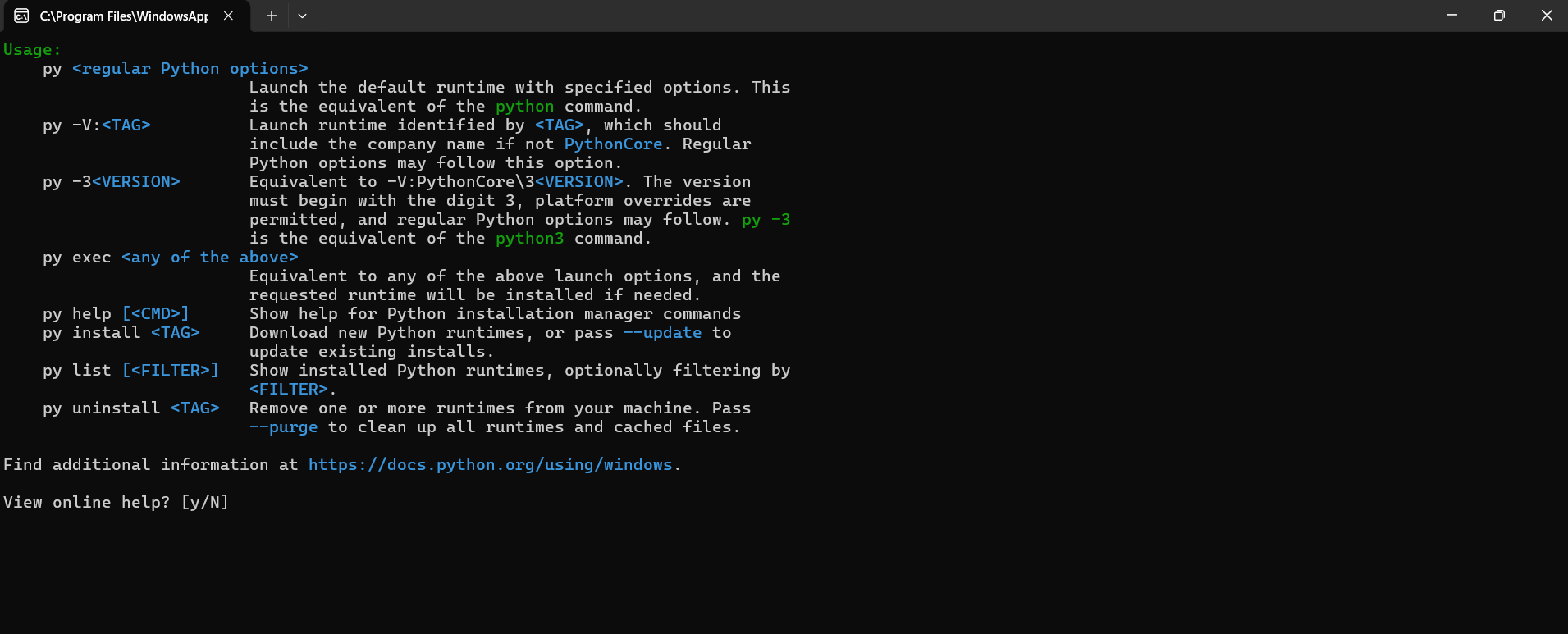
Make sure to check "Add Python to PATH" during installation
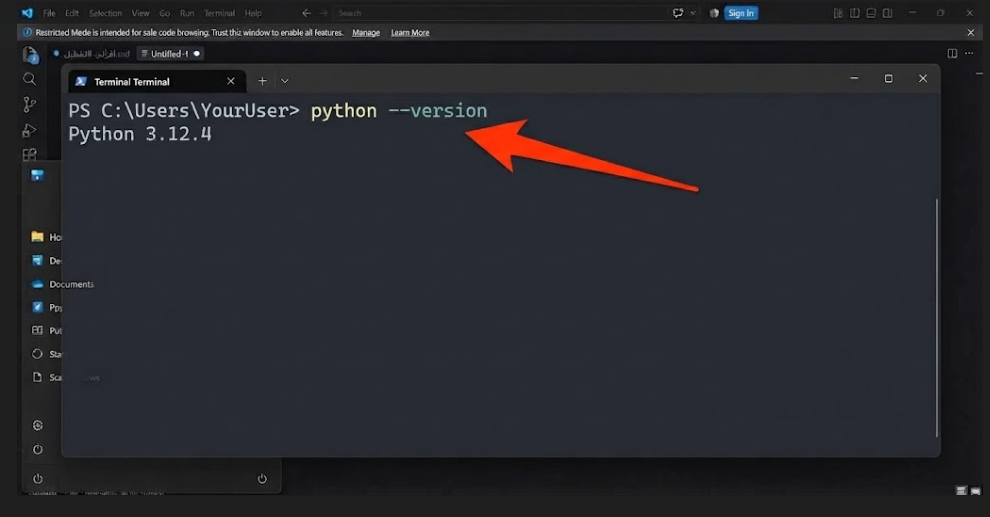
After installation is complete, let's verify. Open the Command Prompt (CMD or Terminal) on your device and type the following command:
If you see the version number (e.g., Python 3.12.4), congratulations, the installation was successful. This means your system is now ready to receive code.
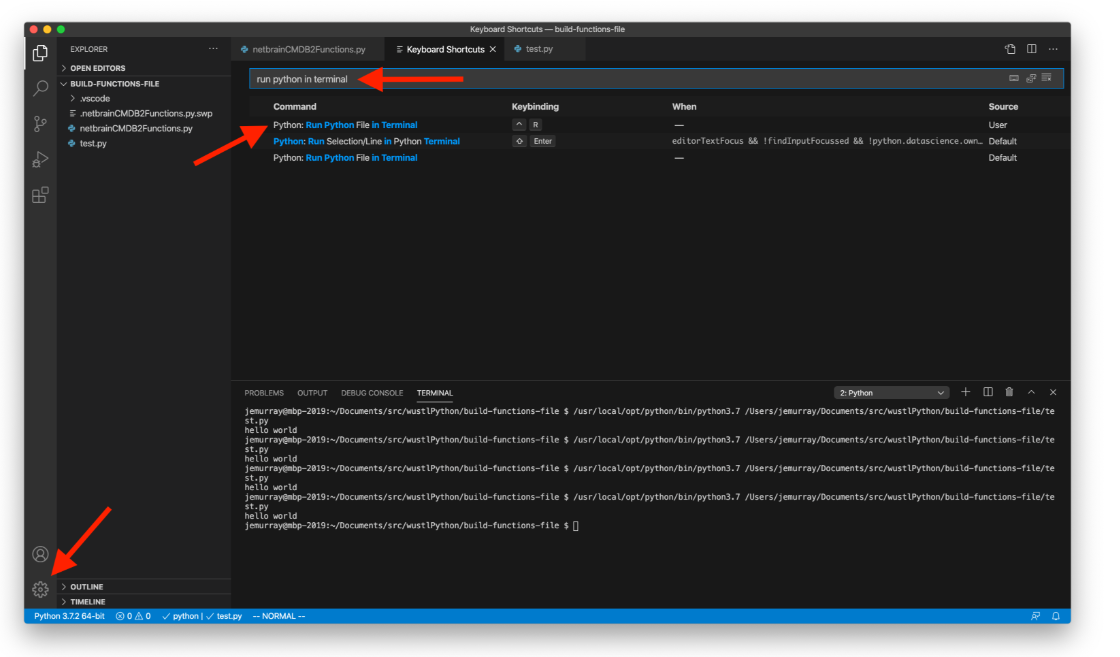
Checking the Python version in the Terminal
Second: Setting up Visual Studio Code
Now, download and install VS Code. When you open it for the first time, you will need to install the "Python" extension from the sidebar (Extensions). This extension is necessary for the editor to understand Python code and provide features like auto-completion.
After installing the extension, create a new folder on your computer, and open it in VS Code via the menu: File > Open Folder. Then create a new file and name it test.py.
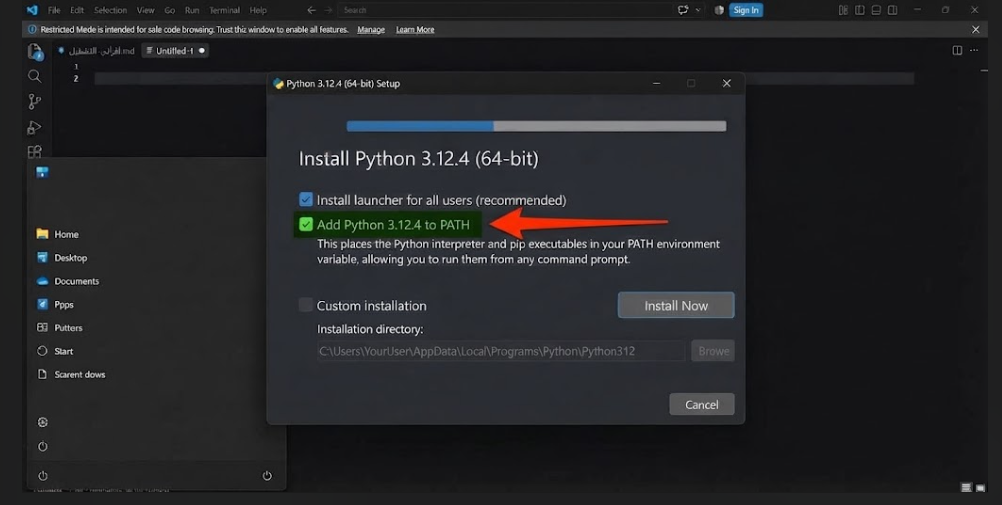
Visual Studio Code interface
Now, write the following code inside the file:
To save the file press Ctrl + S, then to run it press the Run button ▶️ at the top right or use the shortcut Ctrl + F5. You will notice the result appearing in the terminal window at the bottom. Congratulations, you have written your first code!
Third: Important Shortcuts
VS Code is full of shortcuts that save time. You can browse and edit them from the menu File > Preferences > Keyboard Shortcuts. We recommend memorizing the shortcuts for running code and comments, as they will save you a lot of time while working on large projects.
Keyboard shortcuts screen
Fourth: Variables and F-strings
After getting used to writing simple code, let's try a slightly more advanced code that uses variables and prints integrated strings using the letter f. This letter allows you to combine text with variables in one sentence:
age = 25
print(f"{name} is {age} years old")
This code will print the sentence dynamically based on the variable values. You will notice how the name "Ahmed" and age "25" are combined within the text.
Fifth: Google Colab for Beginners
If you are a beginner and want an online environment that does not require installing anything on your device, we recommend trying Google Colab. It is a free cloud environment that allows you to write and run Python code directly from the browser, and it is excellent for learning AI and data analysis without needing a powerful device.
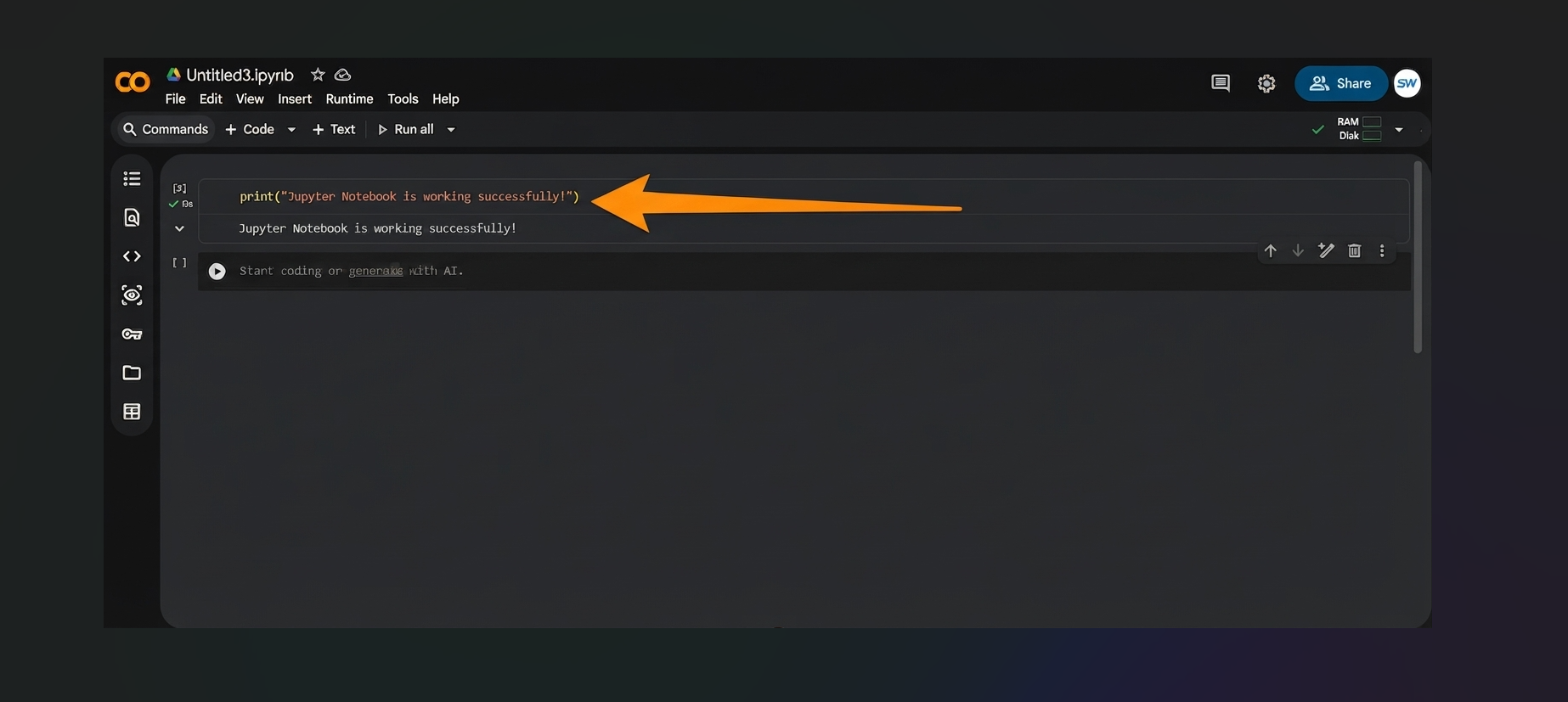
Google Colab environment for coding
In Colab, you can write the simple print code as we did in VS Code:
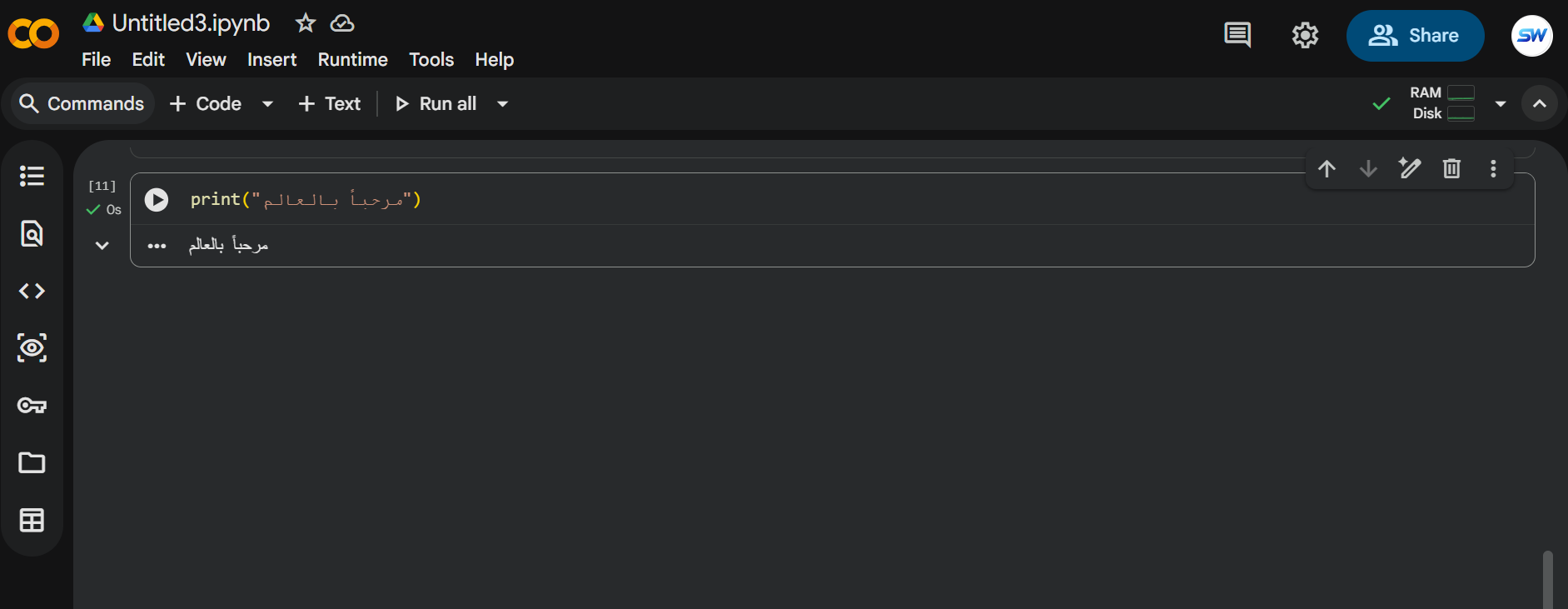
Running Hello World code in Colab
Or try the variables code we learned:
age = 25
print(f"{name} is {age} years old")
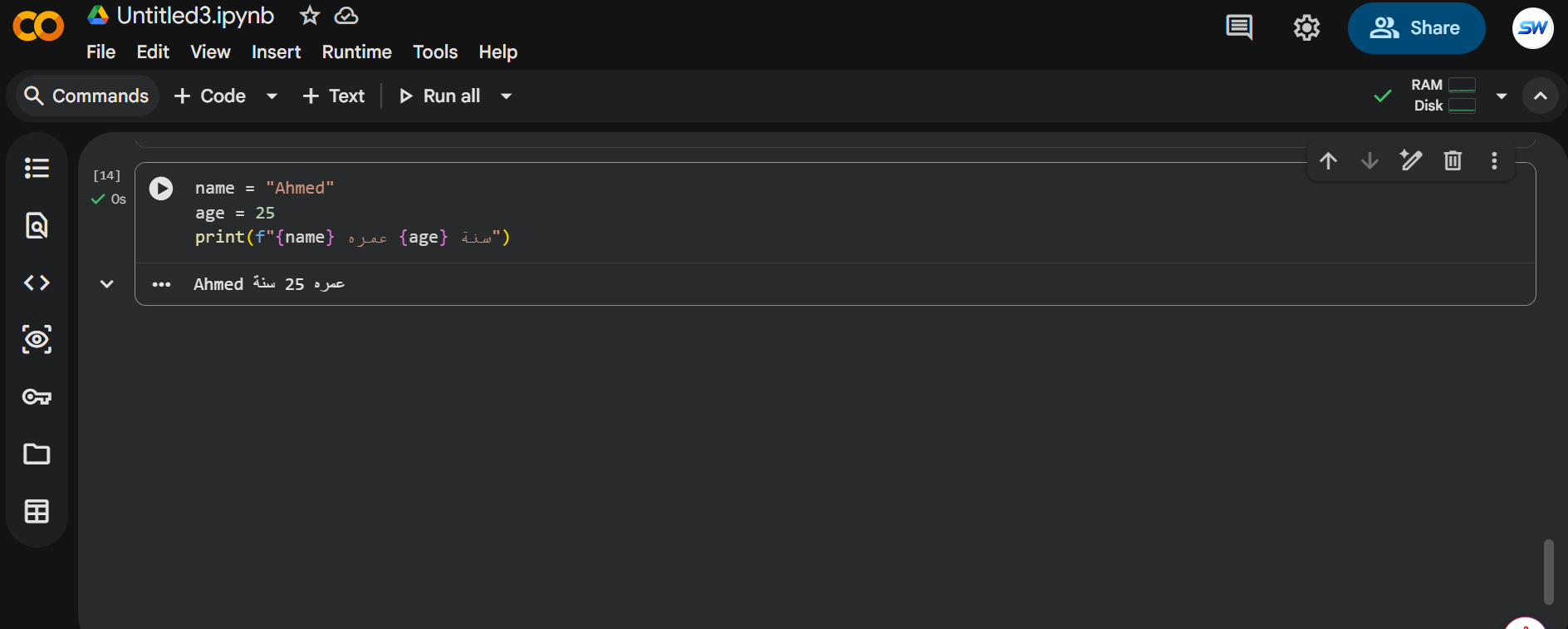
Running variables code in Colab
What is the first project you will program using VS Code and Python? Share with us in the comments!
← Back to Web Development