
Comprehensive Postman Guide: From Zero to Hero
Welcome to this comprehensive guide. In the world of web and app development, you cannot build a successful application without testing APIs. This is where Postman comes in, the tool considered the "laboratory" where developers test their code before releasing it to the world. In this detailed tutorial, we will take you on a journey from zero to hero, step by step, explaining every little detail of this amazing program.
1. What is Postman and why do you need it?
Imagine you want to build a weather app. This app needs to connect to a server to fetch the current temperature. This server provides an "API". Postman is the program that allows you to test this API before building the app itself. You use it to send requests to the server and see the response that comes back.
Simply put, Postman is a "browser simulator" but for developers. You can send different types of requests (like GET, POST, PUT, DELETE), add headers and body, and see the result in a beautiful, readable format. This allows you to discover errors in the API before they reach the end user.
2. Why do you need Postman? (Features)
- Save Time: Instead of writing full code to test an API, you use Postman to send the request and see the result in seconds.
- Organize Projects: You can save your requests in Collections and share them with your team.
- Automated Testing: You can write scripts to test the validity of responses (e.g., ensuring the status code is 200).
- Multiple Environments: You can switch between Development and Production environments with one click.
- Supports all data types: (JSON, XML, HTML, Text).
3. How to Start Using Postman? (Step-by-Step)
To start, you can use the Desktop version or the Web version. For the best experience, we recommend the Desktop version, but the Web version works too.
- Download the Program: Go to the official website (postman.com) and download the version for your OS.
- Create an Account: You can create a free account or sign in with Google.
- Create a New Request: Click on the (+) sign or "New Request".
- Choose Request Type: From the dropdown, choose the request type (e.g., GET).
- Enter URL: Put the API URL you want to test.
- Send Request: Click the blue "Send" button.
- View Response: At the bottom, you will see the result, whether it is JSON data or an error.
4. Understanding the Postman Interface in Detail (With Images)
To understand Postman, imagine it as a web page but with more power. Here is an image showing the interface while sending a request:
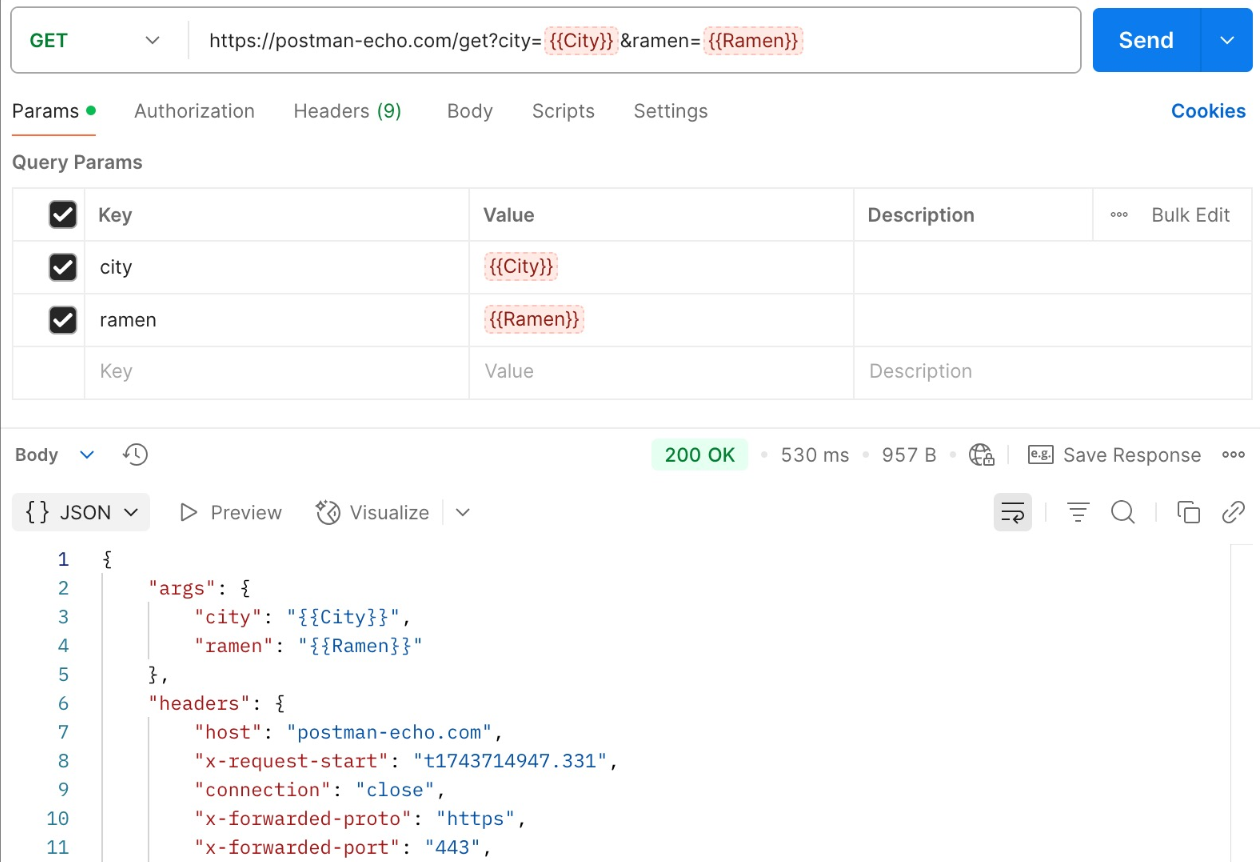
Postman interface while sending a GET request and receiving a JSON response.
1. URL Bar
This is where you write the API URL. Next to it, there is a dropdown to choose the request type (GET, POST, etc.).
2. Tabs
Below the URL bar, you will find several tabs:
- Params: To add Query Parameters.
- Authorization: To add authentication tokens if the API requires login.
- Headers: To add custom headers (like content type).
- Body: To send data in JSON or Form Data in POST requests.
- Scripts: To write JavaScript scripts to automatically test responses.
3. Response Area
This is the bottom area that shows the result after sending the request. It contains:
- Status Code: Like (200 OK) for success, or (404 Not Found) for error.
- Body: The actual response from the server (often in JSON).
- Headers: Additional information about the response.
5. Practical Scenario (How to Test a Real API?)
Let's say you want to test an API that lists users. Follow these steps:
- Open Postman and click "New Request".
- Choose the request type (GET).
- Put the URL:
https://jsonplaceholder.typicode.com/users. - Click "Send".
- At the bottom, a list of users will appear in JSON format.
This is the core of Postman. You can try changing the request type to POST and adding new data to see how the server responds.
6. Common HTTP Methods
| Method | Function |
|---|---|
| GET | To fetch data (like opening a web page). |
| POST | To send new data (like registering a new user). |
| PUT | To update existing data. |
| DELETE | To delete data. |
7. Pro Tips to Speed Up Your Work
- Use Variables: Instead of repeating the URL, save it in a variable and use it in all your requests.
- Save Requests in Collections: To organize your work.
- Use Shortcuts: Like (Ctrl+Enter) to send a request.
8. FAQ
Is Postman free?
Yes, Postman offers a powerful free version for beginners and small projects.
Do I need to learn programming to use Postman?
No, you can use it to test APIs without writing code. However, knowing JavaScript basics will help you write advanced tests.
What is the difference between Postman and Insomnia?
Both are excellent tools. Postman is more popular and has a larger community, while Insomnia is considered lighter and simpler in interface. We will cover Insomnia in a later lesson.
Have you started using Postman in your projects? Share your experience in the comments!
← Back to Web Development